
PRICE & BARCODE LABELS
Print barcode labels from an Excel sheet
Choose an Excel or CSV file and get one label per row, with the name, price and barcode from each row. The file is read in your browser.
Free to try. Opens in your browser; sign up when you want to keep it.
Free tools: Check this barcode Make this barcode free
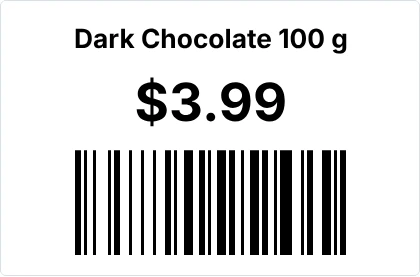
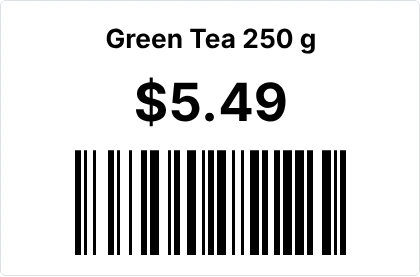
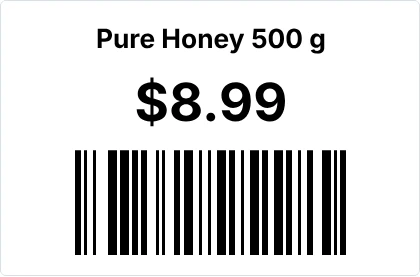
What’s on it
- Product name
- Price in large type
- A barcode with your item code
Change any of it in the editor: text, sizes, your logo, or the label size.
Print it in 3 steps
Open the template
It opens in your browser with empty boxes for your details. No sign-up needed to try it.
Type your details
Choose your Excel or CSV file and match its columns to the name, price and barcode. Each row becomes one label.
Print or save a PDF
On A4 label sheets with a normal printer, or on a label roll. Print one first and check it before you print many.
Questions
Something else? Contact us.
What should my spreadsheet look like?
One row per label, with a heading on each column. For example, as a CSV file:
Name,Price,Code
Dark Chocolate 100 g,1203.99,DC100
Green Tea 250 g,1805.49,GT250
Pure Honey 500 g,3408.99,PH500
Any column names work: you match them to the label when you print.
How many rows can I print?
Up to 2,000 rows per print on Pro (₹499 a month$12 a month) and 10,000 on Business. Spreadsheet printing isn’t on the Free plan, which includes 5 prints or exports every 30 days.
Is my file uploaded?
No. The file is read in your browser to make the labels.
Excel se barcode kaise print kare?
Make a sheet with columns for the name, price and code. In Tamvya, choose Print, then the spreadsheet option, pick your file and match the columns.
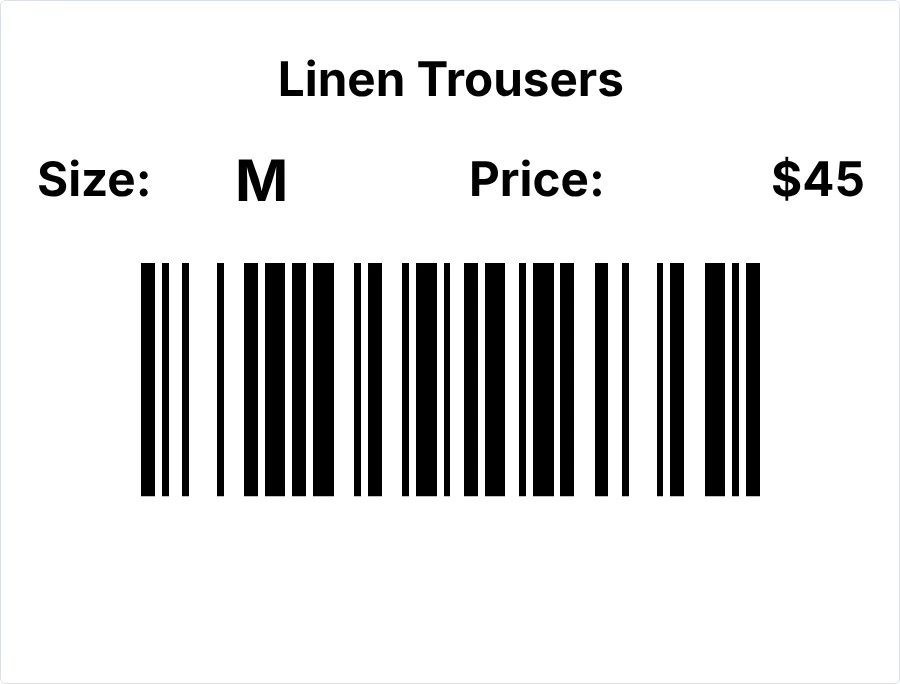
Turn your spreadsheet into labels in minutes.
Free to try, no card needed. New accounts get a 14-day Pro trial.